

Replacement Server Monitoring – Part 2: Building the replacement
This is part two of a three part series of blog posts about picking a replacement monitoring solution, getting it running and ready, and finally moving our customers over to it.
In our last post we discussed our need for a replacement monitoring system and our pick for the software stack we were going to build it on. If you haven’t already, you should go and read that before continuing with this blog post.
This post aims to detail the set up and configuration of the different components to work together, along with some additional customisations we made to get the functionality we wanted.
Component Installation
As mentioned in the previous entry in this series, InfluxData, the TICK stack creators, provide package repositories where pre-built and ready to use packages are available. This eliminates the need for configuration and compilation of source code before we can use it. This allows us to install and run software with the use of a few commands with very predictable results, as opposed to often many commands needed for compilation, with sometimes wildly varying results. Great stuff.
All components are available from the same repository. Here’s how you install them (example shown is for an Ubuntu 16.04 “Xenial” system
curl -sL https://repos.influxdata.com/influxdb.key | sudo apt-key add -
source /etc/lsb-release
echo "deb https://repos.influxdata.com/${DISTRIB_ID,,} ${DISTRIB_CODENAME} stable" | sudo tee /etc/apt/sources.list.d/influxdb.list
sudo apt-get update && sudo apt-get install influxdb
sudo systemctl start influxdb
The above steps are also identical for the other components, Telegraf, Chronograf and Kapacitor. You’ll just need to replace “influxdb” with the correct name in lines 4 and 5.
Configuring and linking the components
As each of the components are created by the same people, InfluxData, linking them together is fortunately very easy (another reason we went with the TICK stack). I’ll show you what additional configuration was put in place for the components and how we then linked together. Note that the components are out of order here, as the configuration of some components is a prerequisite to linking them to another.
InfluxDB
The main change that we make to InfluxDB is to have it listen for connections over HTTPS, meaning any data flowing to/from it will be encrypted. (To do this, you will need to have an SSL certificate and key pair to use. Obtaining that cert/key pair is outside the scope of the blog post). We also require authentication for logins, and disable the query log. We then restart InfluxDB for these changes to take effect.
sudo vim /etc/influx/influx.conf

[http]
    enabled = true
    bind-address = "0.0.0.0:8086"
    auth-enabled = true
    log-enabled = false
    https-enabled = true
    https-certificate = "/etc/influxdb/ssl/reporting-endpoint.dogsbodytecnhology.com.pem"

sudo systemctl restart influxd
Note that the path used for the “https-certificate” parameter will need to exist on your system of course.
We then need to create an administrative user like so:
influx -ssl -host ivory.dogsbodyhosting.net
> CREATE USER admin WITH PASSWORD 'superstrongpassword' WITH ALL PRIVILEGES
Telegraf
The customisations for Telegraf involve telling it where to reports its metrics to, and what metrics to record. We have an automated process, using ansible for rolling these customisations out to customer servers, which we’ll cover in the next part of this series. Make sure you check back for that. These are essentially what changes are made:
sudo vim /etc/telegraf.d/outputs.conf

[[outputs.influxdb]]
  urls = ["https://reporting-endpoint.dogsbodytechnology.com:8086"]
  database = "3340ad1c-31ac-11e8-bfaf-5ba54621292f"
  username = "3340ad1c-31ac-11e8-bfaf-5ba54621292f"
  password = "supersecurepassword"
  retention_policy = ""
  write_consistency = "any"
  timeout = "5s"
The above dictates that Telegraf should connect securely over HTTPS and tells it the username, database and password to use for it’s connection.
We also need to tell Telegraf what metrics it should record. This is configured like so:
[[inputs.cpu]]
  percpu = true
  totalcpu = true
  collect_cpu_time = false
  report_active = true
[[inputs.disk]]
  ignore_fs = ["tmpfs", "devtmpfs", "devfs"]
[[inputs.diskio]]
[[inputs.net]]
[[inputs.kernel]]
[[inputs.mem]]
[[inputs.processes]]
[[inputs.swap]]
[[inputs.system]]
[[inputs.procstat]]
  pattern = "."
The above tells Telegraf what metrics to report, and customises how they are reported a little. For example, we tell it to ignore some pseudo-filesystems in the disk section, as these aren’t important to us.
Kapacitor
The customisations for Kapacitor primarily tell it which InfluxDB instance it should use, and the channels it should use for sending out alerts:
sudo vim /etc/kapacitor/kapacitor.conf
    [http]
    log-enabled = false

    [logging]
    level = “WARN”

    [[influxdb]]
    name = "ivory.dogsbodyhosting.net"
    urls = ["https://reporting-endpoint.dogsbodytechnology.com:8086"]
    username = admin
    password = “supersecurepassword”

    [pushover]
    enabled = true
    token = “yourpushovertoken”
    user-key = “yourpushoveruserkey”

    [smtp]
    enabled = true
    host = "localhost"
    port = 25
    username = ""
    password = ""
    from = "alerts@example.com"
    to = ["sysadmin@example.com"]
As you can probably work out, we use Pushover and email to send/receive our alert messages. This is subject to change over time. During the development phase, I used the Slack output.
Chronograf Grafana
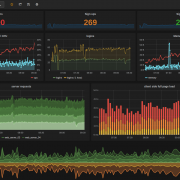
Although the TICK stack offers it’s own visualisation (and control) tool, Chronograf, we ended up using the very popular Grafana instead. At the time when we were building the replacement solution, Chronograf, although very pretty, was somewhat lacking in features, and the features that did exist were sometimes buggy. Please do note that Chronograf was the only component that was still in beta at this period in time. It’s now had a full release and another ~5 months of development. You should definitely try it out for yourself before jumping straight to Grafana. We intend to re-evaluate Chronograf ourselves soon, especially as it is able to control the other components in the TICK stack, something which Grafana does not offer at all.
The Grafana install is pretty straightforward, as it also has a package repository:
sudo vim /etc/apt/sources.list.d/grafana.list
    deb https://packagecloud.io/grafana/stable/debian/ jessie main
sudo apt update
sudo apt install grafana
We then of course make some customisations. The important part here is setting the base URL which is required due to the fact we’ve got Grafana running behind an nginx reverse proxy. (We love nginx and use it wherever we get the chance. We won’t detail the customisations here though as they’re not strictly related to the monitoring solution, and Grafana works just fine on it’s own.)
sudo vim /etc/grafana/grafana.ini
    [server]
    domain = display-endpoint.dogsbodytechnology
    root_url = %(protocol)s://%(domain)s:/grafana
sudo systemctl restart grafana
Summary
The steps above left us with a very powerful and customisable monitoring solution, which worked fantastically for us. Be sure to check back for future instalments in this series. In part 3 we cover setting up alerts with Kapacitor, creating awesome visualisations with Grafana, and getting all of our hundreds of customers’ servers reporting in and alerting.
Replacement Server Monitoring
- Part 1: Picking a Replacement
- Part 2: Building the replacement (you are here)
- Part 3: Kapacitor alerts and going live!
Feature image background by tomandellystravels licensed CC BY 2.0.





Trackbacks & Pingbacks
[…] “most interesting” metric to calculate. For both Telegraf, which we discuss setting up here, and Node Exporter I found looking at the kernel docs most useful for confirming that disk […]
[…] Part two is here. […]
[…] in this series of blog posts we’ve discussed picking a replacement monitoring solution and getting it up and running. This instalment will cover setting up the actual alerting rules for our customers’ servers, […]
Leave a Reply
Want to join the discussion?Feel free to contribute!